
Merge ID Card Front and Back Online
Free online ID card joiner and merger tool. Easily combine ID card photos — put both sides of your ID card on one page and export as a print-ready PDF or JPG.
More free ID and document tools
All tools run in your browser. Nothing is uploaded.
Merge by card type
Protect, resize and convert
⭐ 100% free · No upload · Merge ID card front and back instantly
Banks, visa centres, schools and job portals often ask for a copy of your ID with both sides on one page. Sending two separate photos rarely works. One gets lost, the other gets cropped, and the upload form only takes a single file.This free tool places the front and back of your ID card on one page at its real size. You get a JPG, PNG or PDF that is ready to print or upload. Everything happens in your browser, so your card images stay on your device.
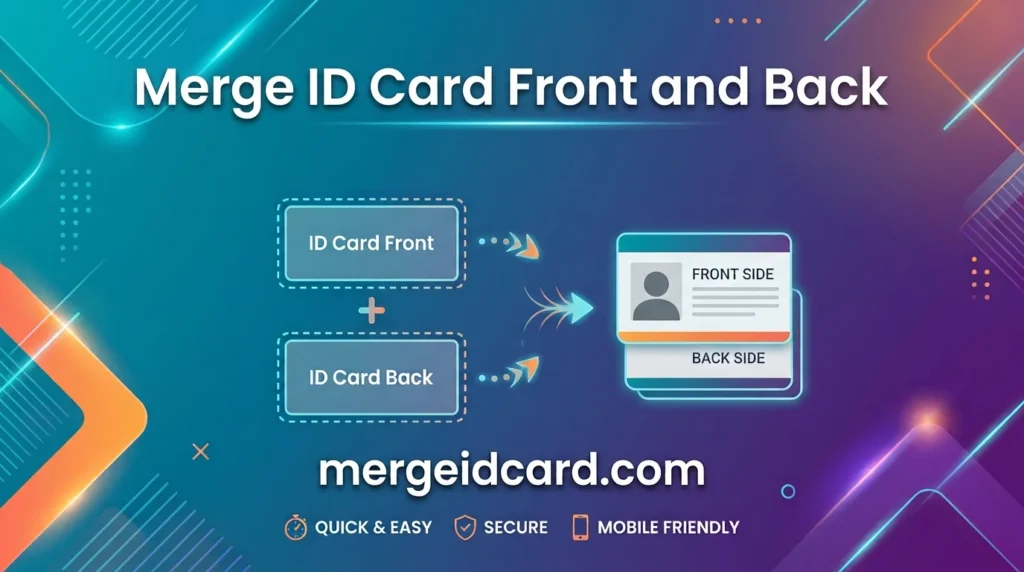
Free Online ID Card Joiner: Combine Both Sides of ID Card in One Page
Need to submit your document for verification? Our online ID card merger allows you to join two-sided ID cards seamlessly. Whether you want to combine ID front and back into a single image or create an ID card in one page PDF, our tool handles it without losing original dimensions or quality
What does it mean to merge an ID card front and back?
Merging means putting both sides of a card into one image or document. The front sits on top and the back goes below it, or you can place them side by side. The result looks like a photocopy from a print shop, except you make it yourself in a few seconds and choose the paper, size and format.
How to merge ID card front and back
- Add the front. Click the FRONT box, drag a file into it, or paste an image with Ctrl+V.
- Add the back. Do the same in the BACK box. JPG, PNG and WebP files all work.
- Check the preview. The merged page appears as soon as both sides are in.
- Adjust if needed. Open Page settings only if you want a different paper size, gap or layout.
- Download. Pick JPG, PNG or PDF under Download as, then press Merge & Download.
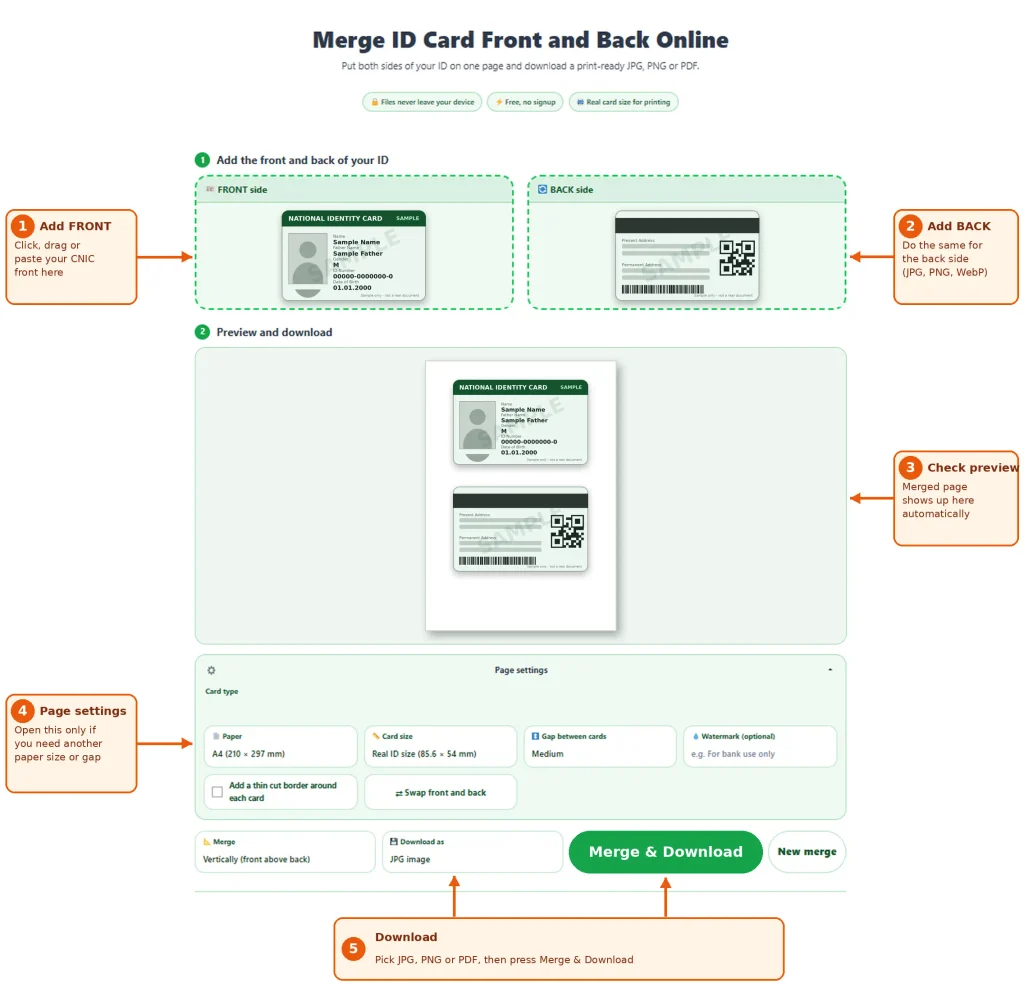
If the sides end up in the wrong order, use Swap front and back. There is no need to upload them again.
What you can change in Page settings
The settings stay closed until you open them, so the tool remains simple for quick jobs. When you need more control, you will find:
- Card type: choose the kind of card you have so the frame matches it.
- Paper: A4, Letter, A5, or “Fit to cards” if you want no blank page around the cards.
- Card size: real ID size (85.6 × 54 mm), or larger versions when small text needs to be easier to read.
- Gap between cards: from none to large.
- Watermark: a line of text across both cards.
- Cut border: a thin guide line so you can trim the card neatly.
- Merge layout: front above back, or side by side.
Why real card size matters
Most ID cards follow the ISO ID-1 size, which is 85.6 mm by 54 mm, about the same as a credit card. When a merged page prints at that size, the copy looks like the real card and fits the space that forms and offices expect. Stretching a card to fill an A4 sheet makes the text look blown up, and some offices reject copies like that.
For this reason the tool starts with the real size and saves at 300 DPI, which keeps small numbers and text sharp. If your layout does not fit the paper you picked, for example two cards side by side on A5, the cards shrink a little instead of getting cut off.
Which ID cards can you merge?
The tool is not tied to one country. Any card with two sides works: national ID cards, CNIC, Aadhaar, PAN, voter cards, driving licences, residence permits, student cards, work badges and insurance cards. The Passport option uses a larger frame for passport-size pages. If your card is not listed, leave the type on Any ID and it will still work.
Is it safe to merge an ID card online?
It is a fair question. An ID copy holds your name, number, photo and address, so you should know where it goes.
This tool merges the images inside your browser, and your files are not sent to a server. You can test this yourself: load the page, turn off your internet, and merge a JPG. The PDF option fetches a small helper file the first time you use it, so use JPG or PNG for that test.Even so, treat the finished file with care. Delete it from shared computers, and avoid using public devices for anything that holds personal documents.
Tips for a clean scan or photo
A merged page can only be as good as the images you put in. A few habits help a lot:
- Lay the card flat on a plain background, with light coming from the side so there is no glare across the photo or hologram.
- Hold your phone straight above the card, not at an angle.
- Keep all four corners in the frame and crop away extra background first.
- Use the same orientation for both sides.
- Look at the preview and make sure the numbers and photo are readable before you download.
Add a watermark before you share
A plain ID copy can be reused by someone else for a purpose you never agreed to. A short note on the copy makes that harder. Something like “For bank account opening only, 30 Sep 2026” states the purpose and the date.Type your text in the Watermark box and it appears across each card in the preview. Keep it short, so it does not cover the details the other side needs to read.
JPG, PNG or PDF: which one should you pick?
- Pick PDF for printing and emailing. The page keeps its paper size and prints at real card size.
- Pick JPG when a website wants an image and limits file size, because JPG files are smaller.
- Pick PNG when you want the sharpest text and a larger file is fine.
Frequently Asked Questions
Yes. This online tool is 100% free to use and lets you merge both sides of any ID card into a single page without creating an account or paying any fees.
Our ID card joiner works directly in your web browser. Simply upload your front and back ID photos, choose whether you want them stacked or side by side, and the tool will combine the ID card photos into a clean, unified document ready to save or print.
Yes. Once your front and back sides are combined, you can choose to download your ID card in one page as a PDF, JPG, or PNG. The PDF format is ideal for standard A4 printing and official document verification.
No. The merge runs in your browser and the images stay on your device.
The merged file is made at 300 DPI, and JPG files are saved at 92% quality. The quality of your original photo still sets the limit, so a blurry photo will not become sharper.
Choose Real ID size, download the PDF, and print it at 100% or “Actual size”. Do not use “Fit to page”, because that changes the size of the cards.
JPG, PNG and WebP.
Yes. Change the Merge option at the bottom to side by side.
It is built to work in most modern mobile browsers. Tap a box to choose a photo from your gallery or take a new one.