Merge Emirates ID Front and Back Online
Combine both sides of your UAE Emirates ID onto a single printable page for official submissions and verification.
More UAE & International Document Tools
Browser-side processing. Your files stay private.
UAE Document Utilities
⭐ Free Online Emirates ID Joiner · Fast, Safe & Mobile Friendly
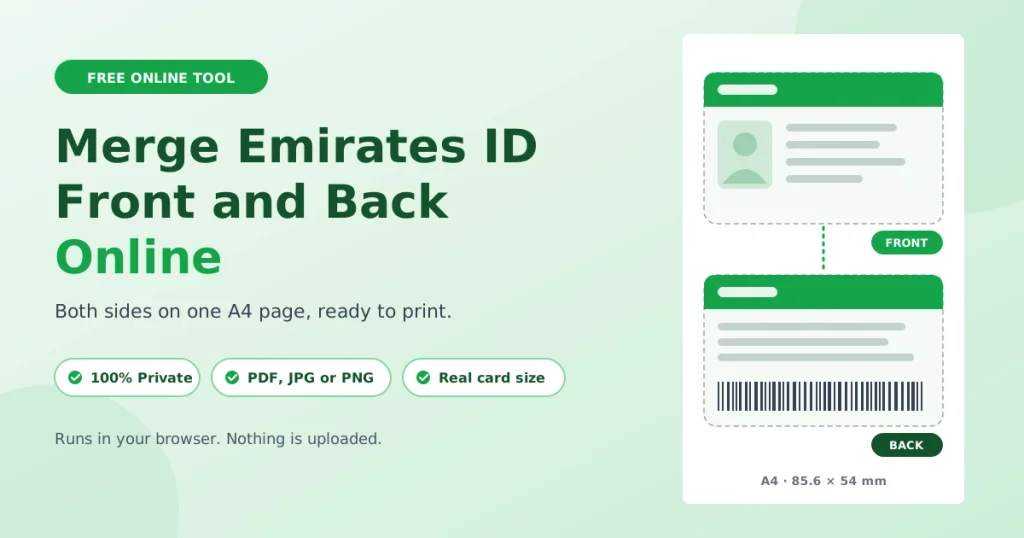
Most places in the UAE that ask for your Emirates ID want to see both sides on one page. Two separate photos tend to get lost in an email thread or rejected by an upload box that takes a single file.This tool puts the front and back of your Emirates ID on one sheet at real card size. You get a PDF, JPG or PNG that is ready to print or upload. It runs in your browser, so your photos are not sent to any server.
Short version: add the front, add the back, check the preview, then press Merge & Download Emirates ID. PDF is selected by default, and you get an A4 page with both sides at 85.6 × 54 mm.
Where people usually need both sides
What the receiver wants differs, so it helps to know what you are making the file for.
| You are dealing with | What they usually want | Suggested file |
|---|---|---|
| A tenancy contract or Ejari registration | A clear copy of both sides, often printed | PDF, A4 |
| A bank or exchange house | Both sides on one page for the file | |
| A new employer | One file for the HR record | |
| A visa or typing centre | A scan to attach to an application | PDF or JPG |
| A school or nursery | A printed copy for the admission file | PDF, printed at 100% |
| An online form with an upload box | A single image under a size limit | JPG |
For tenancy, the registration page of Dubai’s Ejari system, run through Wasl, lists the tenant’s Emirates ID among the documents. It does not say whether that means a printed copy or the original. Rules differ by office, so ask the receiver what format they accept before you send anything.
How to merge your Emirates ID front and back
- Add the front. Click the Emirates ID FRONT box, drag a photo in, or paste one with Ctrl+V.
- Add the back. Do the same in the BACK box. JPG, PNG and WebP files work.
- Check the preview. Zoom in on the ID number and the expiry date. If you cannot read them in the preview, the receiver will not be able to read them either.
- Change the settings only if you need to. The tool opens with the Emirates ID (UAE) preset, an A4 page and the two sides stacked.
- Download. Choose the format and press Merge & Download Emirates ID.
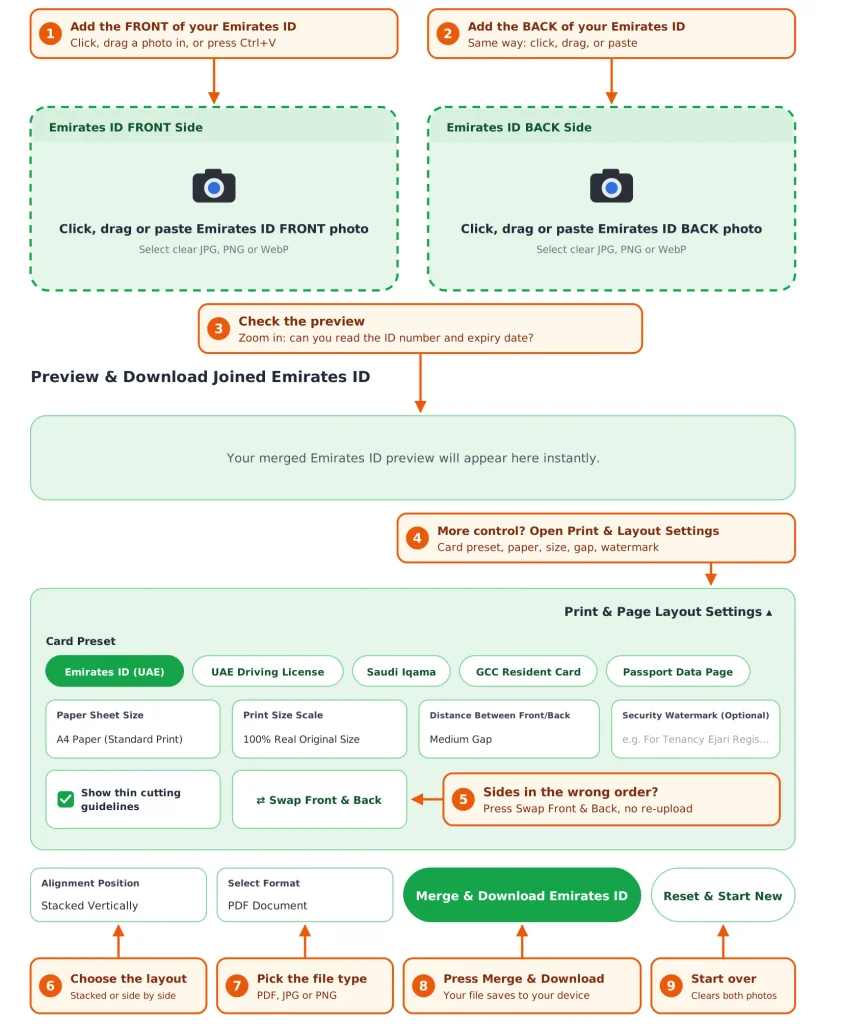
If the sides are in the wrong boxes, press Swap Front & Back instead of uploading again. For a second card, such as a spouse’s or a child’s, press Reset & Start New first.
Which setting should you choose?
Instead of listing every option, here is what to pick for the situations people ask about most.
- You are printing a copy to hand over: A4, 100% size, Medium Gap, and leave cutting guidelines on if they will trim it.
- A form rejects your file as too large: download as JPG, and choose “Fit Card Dimensions Only” so there is no empty page around the cards.
- The small print is hard to read: use Large Clear Size (125%) or Extra Large Scale (150%).
- You want a cleaner upload: untick “Show thin cutting guidelines”. The guidelines are on by default.
- You want the shortest page: switch the layout to Side-by-Side. At 100% two cards fit side by side on an upright A4 page.
- You need a smaller sheet: pick A5. If the cards do not fit at your chosen size, the tool shrinks them a little rather than cutting them off.
| Format | Best for | Watch out for |
|---|---|---|
| Printing, email, most official submissions | Needs an internet connection the first time, because the PDF helper (jsPDF) is fetched from a public library host | |
| JPG | Upload boxes with a size limit | Slightly lower detail than PNG |
| PNG | The sharpest text | The biggest file |
The PDF is one picture of the page, so the text in it cannot be selected or searched. That is the same for a photocopy.
Printing at real card size
An Emirates ID is the same size as a bank card, 85.6 × 54 mm, which is the tool’s default. A copy at that size looks like the card.
- Keep Print Size Scale on 100%.
- Download the PDF.
- In the print window, choose Actual size or 100%. “Fit to page” resizes the cards and defeats the point.
- Lay your real card over the printout. The edges should match.
The card presets on this page (Emirates ID, UAE Driving License, Saudi Iqama, GCC Resident Card) all use the same card size. Only the Passport Data Page preset uses a larger frame. Picking a different card preset does not change the layout.
Should you use the digital Emirates ID instead?
It depends on who is asking. The UAE’s Federal Authority for Identity, Citizenship, Customs and Port Security (ICP) issues Emirates ID cards. According to Gulf News (last updated November 2025), you can get a digital copy through the UAE PASS app or the UAEICP app, where you can download a PDF.
The same article presents the physical card as the primary proof of identity and describes the QR code as a temporary option while you wait for a card. So a merged copy of the physical card is still the safer choice when a receiver specifically asks for “both sides”. If they accept the digital version, ask which one they want.
Before you send the file
- Check the expiry date. An expired card is a common reason a copy gets sent back.
- Check both sides. Make sure you can read the numbers and dates on the front and the back.
- Add a watermark with the purpose and the date. For example: For tenancy registration only – 14 Oct 2026. It appears in light red across each card, so keep it short and do not put it over the numbers.
- Send it only to a contact you can verify. Use the official email or portal of the bank, landlord’s agent or employer.
- Delete the file from shared computers. Check the Downloads folder too.
Privacy: where your photos go
Nowhere. The merge runs in your browser, and your images are not uploaded or stored. You can test it yourself: open the page, switch off your internet, and merge a JPG. The PDF option needs the helper script from the internet the first time, so use JPG or PNG for that test.
Frequently Asked Questions
Yes. It is free, and you do not need an account.
No. The merge runs in your browser, and the photos stay on your device. Only the PDF helper script is fetched from the internet.
That depends on the office or the person receiving it. This tool only arranges your card images on one page. Ask what format and size they accept before you send it.
You can add any image, but many receivers want a copy of the physical card. Check with them first.
By default 85.6 × 54 mm, the standard card size. Use 125% or 150% if you want it larger.
Cutting guidelines are switched on by default. Untick “Show thin cutting guidelines” if you want a clean copy.
Yes, one card at a time. Download the first, press Reset & Start New, and add the next card.