
Merge Driving License Front and Back Online
Combine both sides of your Driving License onto a single page for instant printing or online verification.
More Free License & Document Tools
Browser-side processing. Your files stay private.
Vehicle & ID Utilities
⭐ Free Online Driving License Joiner · Safe, Secure & Fast
You are booking a rental car, or applying for driver post and the form asks for a copy of your driving license, front and back. The upload box takes one file. Two separate photos either do not fit, or one of them goes missing, and your booking waits.This free tool puts both sides of your driving license (driving licence, if you prefer that spelling) on one page at real card size. You can download it as a PDF, JPG or PNG. The merging runs in your browser, so your images stay on your phone or computer.
Why both sides are asked for
A licence is more than a photo ID. The front usually shows who you are. The back often shows what you are allowed to drive.
| Side | What it usually shows | What the person checking it looks for |
|---|---|---|
| Front | Photo, name, licence number, date of birth, expiry date | Does the face match, and is the licence still valid? |
| Back | In many countries: vehicle categories, restrictions or endorsements, sometimes a barcode | Are you cleared for this vehicle type? |
Layouts differ from country to country, so look at your own card. If the back is blank on yours, you may not need a merged copy at all.
Merge your license in four steps
- Add the front photo to the first box. Tap it, drag a file in, or paste with Ctrl+V.
- Add the back photo to the second box.
- Check the preview. Make sure the licence number and expiry date are readable on the front, and the categories on the back.
- Pick PDF, JPG or PNG, then press Merge & Download License.
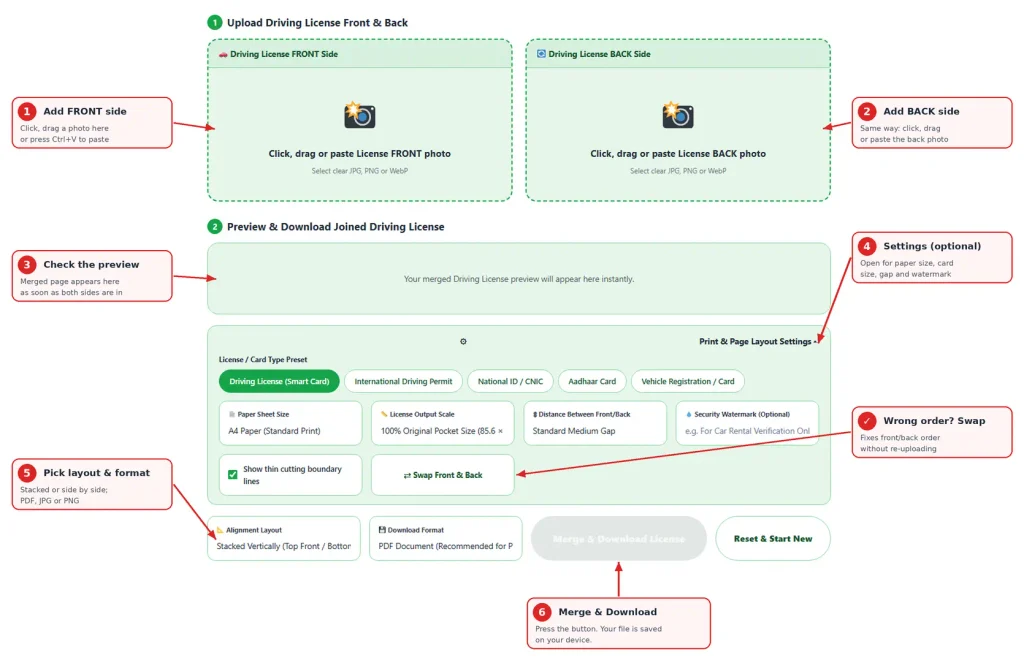
If the sides went into the wrong boxes, press Swap Front & Back.
Who asks for a copy and what to keep in mind
| Who is asking | Usual format | Tip |
|---|---|---|
| Car or bike rental company | JPG for a booking form, PDF for email | Expect to show the original at pickup as well |
| Insurance company | Keep the expiry date clearly visible | |
| Employer or fleet manager | Add a watermark with the purpose | |
| Ride or delivery platform onboarding | JPG | Check the file size limit in the app |
| Traffic office or court paperwork | PDF, printed | Print at Actual size |
Every organisation sets its own rules, so follow the instruction on their form.
Plastic cards need a little technique
Driving licences are glossy, often laminated, and many have a hologram. That makes glare the number one reason for unreadable copies.
- Lay the card flat on a plain, matte surface, not on a table with a shiny finish.
- Use daylight from a window to one side. Overhead lights and flash bounce straight back.
- Tilt the card very slightly and look at the phone screen. Move until the glare slides off the text.
- Keep all four rounded corners inside the frame.
- Photograph the back as carefully as the front. Small category codes are easy to blur.
- Check the licence number by zooming into the preview before you download.
Real size matters
Most driving licences follow the standard ID-1 card size, about 85.6 × 54 mm, the same as a bank card. The tool starts at this size and saves at 300 DPI, so small print stays sharp.
Stretching the card across a full A4 page makes it look odd, and some offices reject such copies. When you print the PDF, choose Actual size or 100%. “Fit to page” changes the size of the card.If small text on the back is hard to read, try the 125% option.
Old paper licence or booklet?
Some older licences are paper documents or small booklets, and they are larger than a card. The tool fits them inside a card-sized frame, so they will look smaller than they are. If you hold one of these, photograph only the page with the details and try the 125% or 150% size. If the result is still too small to read, a normal scan to PDF may suit that document better.
Digital licence or PDF copy
If your licensing authority gives you a digital licence or a PDF through its official app or portal, save the card portion as a JPG or PNG first. This tool works with images, not PDF files. Then add the images to the front and back boxes.
Before you send it: a quick checklist
- The licence number and expiry date are sharp and readable.
- The licence has not expired.
- Both sides are in the right order.
- A short watermark states the purpose and date.
- You are sending it to an official email, portal or app, not a random chat number.
- The clean original file stays with you.
A watermark makes reuse harder
A plain copy can be used for things you never agreed to. Type a short line in the watermark box, for example “For car rental booking only, 14 Oct 2026”. It appears across each card in the preview, so you can check that it does not cover the number or photo.
Is it safe to merge a driving license online?
Your images are merged inside your browser and are not sent to our server. You can test this yourself. Open the page, switch off your internet and merge a JPG. The PDF option fetches a small helper file the first time you use it, so test with JPG or PNG.
Treat the finished file with care. A driving license copy shows your photo, name, address, date of birth and licence number. Delete it from shared computers and avoid sending it through public groups.
PDF, JPG or PNG
PDF keeps the page size and prints at real card size, so it suits email and printing. JPG gives smaller files for upload forms with limits. PNG gives the cleanest text, but the file is larger.
Quick fixes
- The card looks small on A4. It is printed at real size. Pick 125% if you want it larger.
- A thin grey border shows around the cards. That is the cut border. Turn it off in the settings.
- The text on the back is blurry. Retake that photo closer, with the glare angled away.
- The PDF did not download. The helper file may not have loaded. Check your connection or save a JPG.
Note: Rules about licences and accepted documents come from your local licensing authority, such as the DMV, DVLA or your regional transport office, and from the organisation asking for the copy. Always follow their instructions.
Frequently Asked Questions
Yes. The tool is free and needs no sign-up.
Often yes, because many licences list vehicle categories or restrictions there. Follow the instruction on the form.
No. The merge happens in your browser. Only the PDF option fetches a small helper file from a public library the first time, and your images are not part of that request.
Not directly. Save the card portion as a JPG or PNG first, then add it to the front and back boxes.
The file is made at 300 DPI. PNG is lossless, and JPG and PDF use high quality compression. A blurry photo stays blurry.
Download the PDF and print at 100% or Actual size. Do not choose “Fit to page”.
Save a JPG with the Fit License Size Only paper option, then reduce it with the image size reducer.
Yes. Tap a box and pick a photo from your gallery or take a new one.
The purpose and the date, for example “For car rental booking only, 14 Oct 2026”.