
ID Card to PDF Converter Online
Apney CNIC, ID Card ya Passport photo ko A4 printable PDF format mein convert aur download karein.
More Free ID & PDF Document Tools
Browser-side processing. Your files never leave your device.
Popular Utilities
⭐ Free Online ID Card to PDF Converter · Fast, Safe & Mobile Friendly
A portal that says “upload your ID as a PDF” is asking for something a phone photo is not. Photos come out as JPG or HEIC files, in random sizes, and they print however the printer decides. This tool puts your ID card photo on a proper PDF page: real card size on A4 or Letter, or a page cut to the card itself.You can add one side or both. With one photo you get one card on the page. With two, the cards are stacked or placed side by side. The conversion happens in your browser, so your photos are not uploaded.
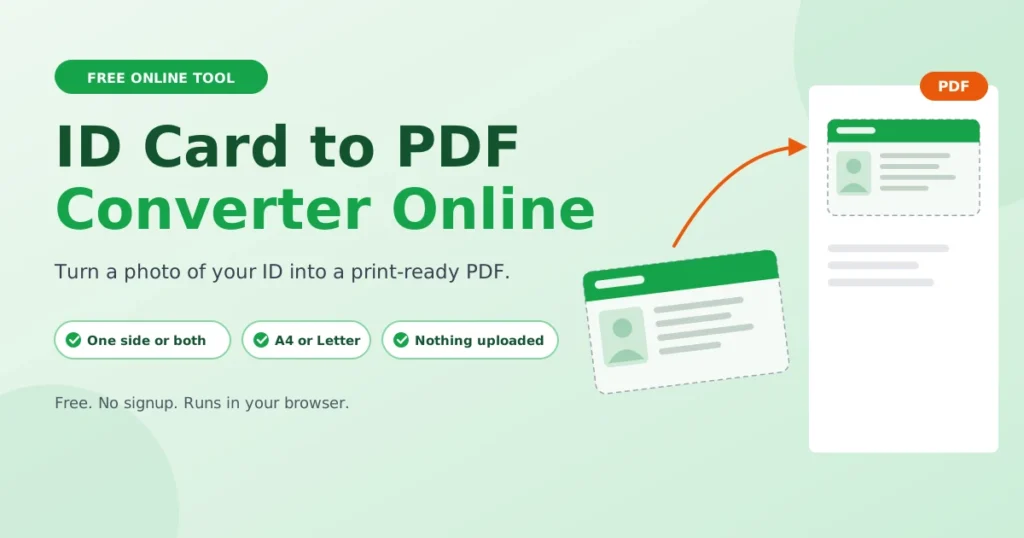
Short answer: add your ID photo, check the preview, and press Download PDF Document. The defaults are A4, portrait, and 100% card size.
ID Card to PDF Converter – Overview Table
| You add | One or two photos (JPG, PNG or WebP) |
| You get | One PDF file |
| Paper | A4, US Letter, or a page cut to the card |
| Card size | 100% (85.6 × 54 mm, the standard ID card size), 125% or 150% |
| Two photos | Stacked or side by side, with a 10 mm gap |
| Quality | The page is built at 300 DPI |
| Extra | Optional text watermark |
| Cost | Free, no account |
One side or both?
Not every ID needs both sides. If the back is blank, or the form only asks for the front, add just the front and leave the back box empty. The PDF will hold a single card.
If you need both sides, add both. They go on the same page, so the person receiving it does not have to match two files.
How to turn an ID card photo into a PDF
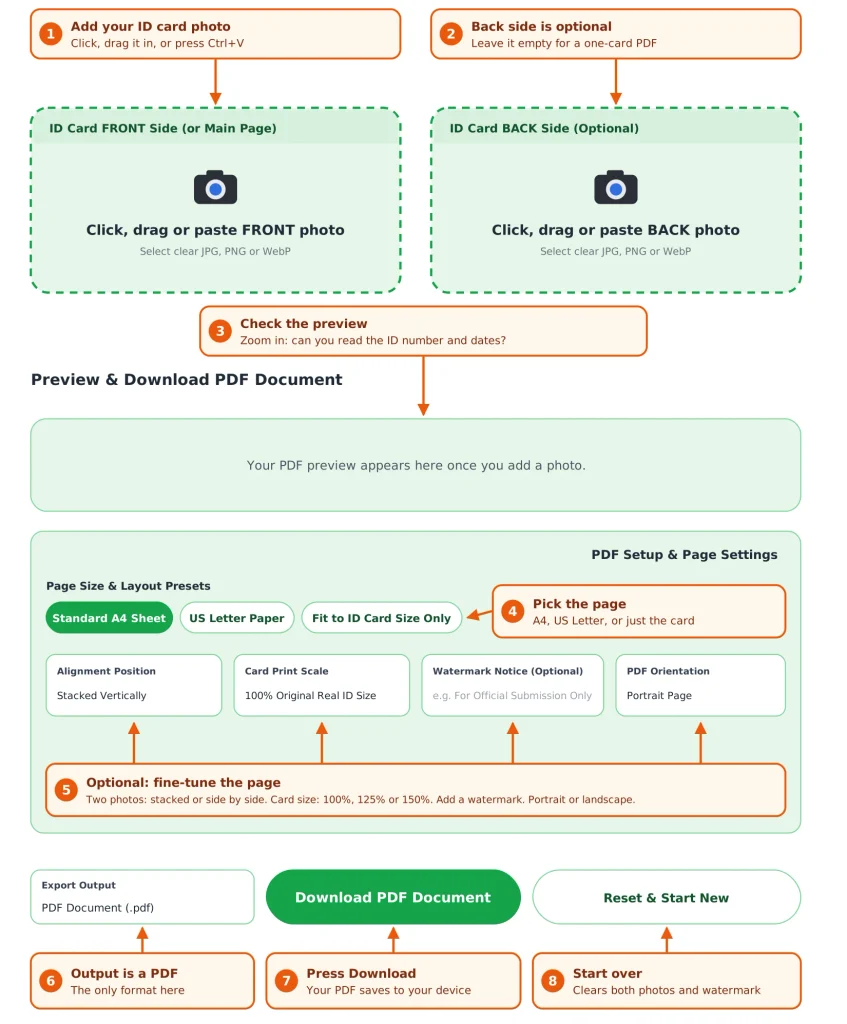
- Add the front. Click the FRONT box, drag a photo in, or paste one with Ctrl+V.
- Add the back if you need it. The BACK box is optional.
- Check the preview. Zoom in on the ID number and the dates. If you cannot read them here, nobody will be able to read them in the PDF.
- Pick the page. Open PDF Setup & Page Settings only if you want something other than A4 at real size.
- Download. Press Download PDF Document. The first time, the page loads a small helper script (jsPDF) from the internet, so you need a connection at that moment.
Pick your settings by what you need
| What you need | Set this | What happens |
|---|---|---|
| A copy to print and hand over | A4 or US Letter, 100% | The card prints at its real size, like a photocopy |
| Small text is hard to read | 125% or 150% | Same page, bigger card |
| A PDF that is only the card | Fit to ID Card Size Only | The page is cut to the card with a thin white margin |
| Both sides, one page | Stacked Vertically (default) | Front above back |
| Both sides, less height | Side-by-Side | Front on the left, back on the right. At 100% it fits on an A4 or Letter page held upright |
| A landscape page | PDF Orientation: Landscape | Applies to A4 and Letter. The card-sized page follows the card’s shape |
| Limit what the copy can be used for | Watermark text | Your text runs diagonally across each card in light red |
For the watermark, say what the copy is for and when, for example: For bank account opening only – 14 Oct 2026. Keep it short so it does not cover the details.
ID Card to PDF or Merge ID Card: which page do you need?
Both pages can give you a PDF, but they are built for different jobs.
| Title | ID Card to PDF (this page) | Merge ID Card |
|---|---|---|
| Output file | JPG, PNG or PDF | |
| Works with one side only | Yes | No, it needs both sides |
| Paper sizes | A4, Letter, card-sized | A4, Letter, A5, card-sized |
| Gap between cards | Fixed at 10 mm | None, small, medium or large |
| Cut border | No | Yes |
| Swap front and back | No | Yes |
| Page orientation | Portrait or landscape | Follows the layout you choose |
Rule of thumb: one photo, or you only need a PDF, stay here. Two sides with a cut border, or you want a JPG or PNG, use Merge ID Card.
Before you send the PDF anywhere
- Check what they accept. Some sites want one file, some want a size limit, some ask for a specific file name. A rejected upload wastes more time than a two-minute check.
- Open the PDF yourself. Zoom to the ID number, the photo and the expiry date.
- Mark it. A watermark with the purpose and date makes the copy harder to reuse for something else.
- Send it through the official channel. Use the bank’s, employer’s or office’s own email or portal.
- Delete it from shared computers. Check the Downloads folder as well.
- Ask whether an official digital copy exists. If the authority that issued your ID offers its own PDF download, some offices prefer that over a PDF made from a photo.
What this tool does not do
- It does not fill the page with a full document. Your image is fitted inside a card-sized frame, which is 150% at most (128 × 81 mm). A full-page certificate or letter will shrink to card size. For that, use Image to PDF.
- It does not reduce file size. The card area is saved as one JPEG image at 300 DPI. If a portal limits file size, shrink the photo first with the Image Compressor.
- The text in the PDF is not selectable. It is a picture of your card, not typed text.
- A passport page will print smaller than real size. A passport data page is bigger than a card. Merge ID Card has a passport frame for that.
Three things that decide whether the PDF is readable
The PDF is only as clear as the photo you start with.
- Light from the side, not flash. Flash puts a white patch over the photo and the hologram.
- Phone directly above the card. A tilted photo gets squeezed into the frame and the text goes soft.
- All four corners in the picture. Crop away the background before you upload.
Where your photos go
Nowhere. The PDF is built inside your browser, and the images are not sent to a server. The only thing the page downloads is the jsPDF helper script from a public library host, the first time you press Download. Your images are not part of that request.
Frequently Asked Questions
Yes. It is free, and you do not need an account.
No. Add only the front and leave the back empty, and you get a PDF with one card on the page.
No. The PDF is made in your browser and the photos stay on your device. Only the PDF helper script is fetched from the internet.
Yes. Any card photo works. This page has no card-specific frames, so it uses the same standard card size for all of them.
Keep Card Print Scale on 100%, download the PDF, and print it at 100% or “Actual size”. Do not choose “Fit to page”, because that resizes the cards.
The tool does not compress the file. If the form has a size limit, make the photo smaller first, then convert it.
No. The image is fitted inside a card-sized frame, so a full page would shrink a lot. Use an Image to PDF tool for full-page documents.