Merge Aadhaar Card Front and Back Online
आधार कार्ड के दोनों साइड को एक पेज पर जोड़ें और A4 PDF या JPG में तुरंत डाउनलोड करें।
More Free ID Card Tools
Browser-side Processing. Your privacy is guaranteed.
Indian ID Card Utilities
⭐ Free Online Aadhaar Card Joiner · Safe, Secure & Fast
A lot of Aadhaar uploads fail for a boring reason. The form takes one file, and your Aadhaar has two sides that both matter. The front shows your name, date of birth, gender, 12-digit number and photo. The address and the QR code are on the back. Send one side and you will usually be asked for the other.
This free tool puts both sides on one page at real card size and gives you a PDF, JPG or PNG. The merging runs in your browser, so your Aadhaar images stay on your phone or computer.
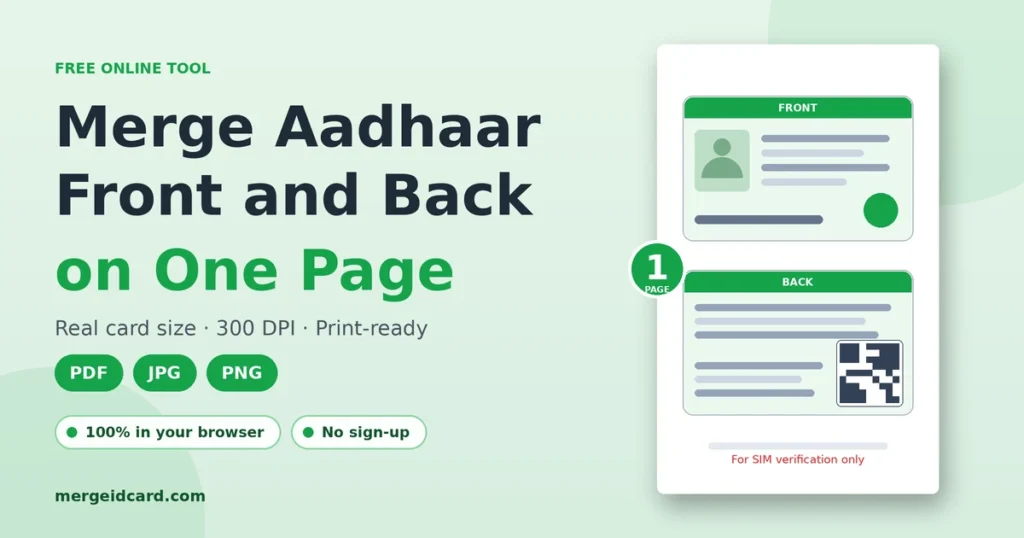
Quick answer: Add the front, add the back, look at the preview, choose PDF for printing or JPG for uploads, then press Merge & Download Aadhaar. The default page is A4 with the card at 85.6 × 54 mm.
How to merge Aadhaar front and back
- Tap the Aadhaar FRONT box and pick a photo. On a computer you can also drag a file in or paste with Ctrl+V.
- Do the same in the BACK box. JPG, PNG and WebP are accepted.
- The merged page shows up in the preview as soon as both sides are in. Zoom in and check that the number, name and address are readable.
- Open the settings only if you need something different, such as another paper size or a watermark.
- Choose PDF, JPG or PNG and press the green button.
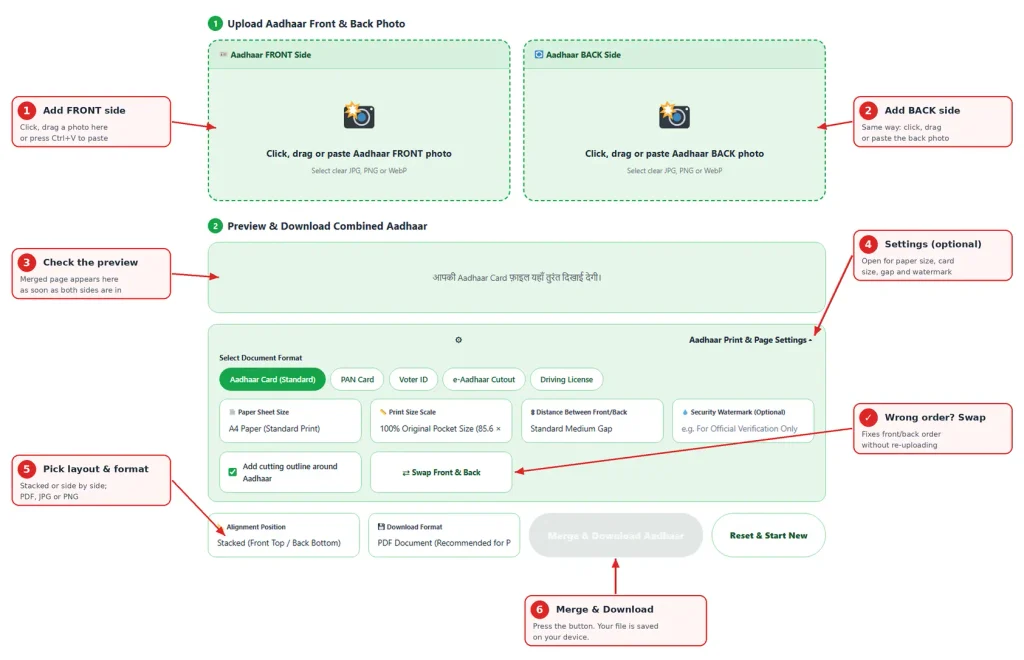
Put the sides in the wrong boxes? Press Swap Front & Back. No need to upload again.
Have an e-Aadhaar PDF instead of a card photo?
This tool works with images, not PDFs. If you downloaded e-Aadhaar from the UIDAI website, open the file first (it is password protected; UIDAI’s password is the first four letters of your name in capitals followed by your birth year), then save the card portion as a JPG or PNG. A phone screenshot cropped to the card works fine. Our e-Aadhaar PDF cropper does this cut for you. After that, choose the e-Aadhaar Cutout option in the settings and merge as usual.
Should you share the full number or a masked Aadhaar?
This matters more than the merging itself. UIDAI lets you download a masked Aadhaar from the myAadhaar website. It hides the first eight digits and shows only the last four. UIDAI also says that only organisations holding a UIDAI user licence can use Aadhaar to establish identity, and that people should use normal care when sharing their details.
A simple way to decide:
- Use the full copy when a bank, telecom company or another regulated body asks for it for KYC. They usually need the whole number.
- Use a masked copy when the receiver only wants proof of identity or address, or when you are not sure they are an authorised user of Aadhaar.
- Ask first. One message to the receiver (“Is masked Aadhaar fine?”) saves a lot of worry.
If you download a masked e-Aadhaar, you can merge it here the same way.
Where a one-page Aadhaar copy is usually asked for
Rules differ for every office, so follow the instruction on your form. These are the common cases.
| Where | What usually works | Note |
|---|---|---|
| Bank account, loan or KYC | PDF for the branch, JPG for an app | Add a watermark with purpose and date |
| Mobile connection or SIM forms | JPG | Photo and number must be sharp |
| College admission, hostel, exam forms | JPG | Portals often cap the file size, so check first |
| Job joining and HR records | Use “Fit Aadhaar Only” paper for a tight page | |
| Gas, utility or society forms | PDF or JPG | The address on the back must be easy to read |
Print at real card size
The Aadhaar PVC card and most laminated cards are credit-card sized, about 85.6 × 54 mm. The tool starts at exactly that size and saves at 300 DPI, so small digits stay clear.Stretching a card across an A4 sheet blows up the text and some offices will not accept it. If you need a bigger copy, pick the 125% or 150% scale. When your choice does not fit the paper, for example two large cards side by side on A5, the tool shrinks them slightly instead of cutting the edges.
When you print the PDF, set the scale to Actual size or 100%. “Fit to page” changes the card size.
What each setting does
- Card type: Aadhaar, PAN, Voter ID, e-Aadhaar Cutout or Driving License. All five use the same card-size frame, so the page looks identical. For other cards, keep Aadhaar selected.
- Paper size: A4, Letter, A5, or Fit Aadhaar Only if you want no empty page around the cards.
- Print size scale: 100% is real size. Go to 125% or 150% only when text is hard to read.
- Distance between front and back: None, small, medium or wide. Medium works well if you plan to cut the copy.
- Security watermark: a short line across both cards.
- Cutting outline: a thin grey border. Switch it off when a portal wants a clean image.
- Alignment: stacked (front on top) or side by side.
Your photos are fitted inside the frame without stretching, so a slightly different shape will not distort the card.
PDF, JPG or PNG
PDF is the best choice for printing and emailing. It keeps the page size. JPG suits upload forms with a size limit because the file is smaller. PNG gives the crispest text, but the file is larger and may cross a portal’s limit.
Is it safe to merge Aadhaar online?
An Aadhaar copy carries your number, photo, date of birth and address, so the question is fair.
The merge happens in your browser and your images are not sent to our server. You can check this yourself. Open the page, switch off your internet and merge a JPG. The PDF option downloads a small helper file the first time you use it, so use JPG or PNG for that test.
Also be careful with the finished file. Delete it from shared computers and cyber cafe machines. UIDAI itself advises against using a public computer to download e-Aadhaar, and if you ever must, delete every copy before you leave.
Add a watermark before you send it
An unmarked copy can be reused for something you never agreed to. One short line makes that harder. Write the purpose and the date, for example:
For SIM verification only, 14-10-20xx etc
Keep it short so it does not cover the number or the photo. It appears across each card in the preview, so you can adjust before downloading.
Getting a clear photo
- Lay the card flat on a plain surface with no pattern.
- Hold the phone straight above it. A tilted shot makes the edges look slanted.
- Light the card from the side. Laminated and PVC cards reflect a lot of glare.
- Keep all four corners in the frame and crop the extra background.
- Use the same orientation for both sides.
- If the photo is dark or soft, run it through the photo enhancer first.
Do and don’t
| Do | Don’t |
|---|---|
| Add purpose and date as a watermark | Send a clean, unmarked copy to anyone who asks |
| Send it only to the office or portal that requested it | Post it in public groups or on social media |
| Print at Actual size | Stretch it to fill the page |
| Check the preview before downloading | Upload a blurry or cropped photo |
| Delete the file from shared devices | Leave downloads on a cyber cafe computer |
Common problems
- The card looks small on A4. That is real size, so it is correct. Choose 125% or 150% for a larger copy.
- A thin grey line shows around the cards. The cutting outline is on. Turn it off in the settings.
- The portal says the file is too large. Switch from PNG to JPG, then reduce it.
- The text looks soft. The source photo has low resolution. Retake it closer and with more light.
- The PDF did not download. The helper file may not have loaded. Check your connection, try again, or save a JPG.
Each bank, college or employer sets its own rules for ID copies, so read their instructions before you submit. For official information about Aadhaar, masked Aadhaar and e-Aadhaar, visit UIDAI.
Frequently Asked Questions
Yes. The tool is free and needs no sign-up.
No. The merge happens in your browser. Only the PDF option fetches a small helper file from a public library the first time, and your images are not part of that request.
Yes. Download the masked version from the UIDAI website, save the card portion as an image and merge it the same way.
Not directly. Save the card portion as a JPG or PNG first, then add it to the front and back boxes.
The file is made at 300 DPI. PNG is lossless, and JPG and PDF use high quality compression. A blurry photo will stay blurry.
Download the PDF and print it at 100% or Actual size. Do not choose “Fit to page”.
Save a JPG, then reduce the size with our image size reducer.
Yes. Tap a box to pick a photo from your gallery or take a new one.
Most do, but not all. If an office asks for separate files or a self-attested copy, follow what they say.
The purpose and the date, for example “For SIM verification only, 14-10-2026”.