
Merge Bangladesh NID Card Front and Back Online
Combine both sides of your Bangladeshi Smart NID Card, Paper NID, or Driving License on one printable page and download instantly in JPG, PNG, or PDF format.
More Free Bangladesh Document & ID Tools
100% Secure Client-Side Web Tools. No documents are uploaded to any server.
🪪 NID & Identity Card Joiners
⚡ Optimization, Photo & Security Tools
⭐ Free Online Bangladesh NID Card Joiner Tool · Fast, Safe & Mobile Friendly
What Is a Bangladesh NID Card Merger?
A Bangladesh NID card merger puts the front and the back of your National ID card on a single page, so you can print one sheet instead of two. Upload both photos, check the preview, and download a PDF, JPG or PNG. The card prints at its real size, 85.6 × 54 mm, which is the standard size banks, telecom shops and offices expect for a photocopy.
The tool also works for a driving license, a passport page, a birth registration certificate and a TIN certificate. Everything runs inside your browser, so your photos never reach our server.
How to Merge NID Card Front and Back Online
It takes about a minute. You don’t need an account.
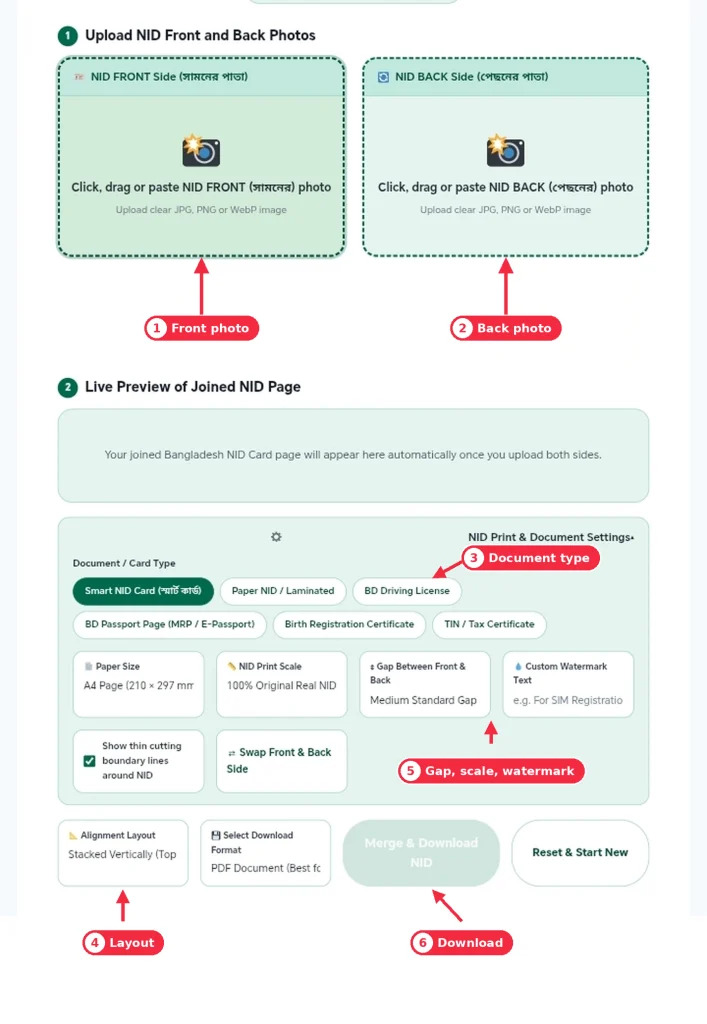
- Upload the front: Click the front box, drag a photo into it, or paste one from your clipboard.
- Upload the back: Do the same for the back side. If you picked them in the wrong order, press “Swap Front & Back”.
- Choose the document type: Open the settings panel and pick Smart NID, paper NID, driving license or another document.
- Set the layout: Choose stacked (front on top) or side by side, then pick A4, Letter, A5 or a tight fit.
- Download: Choose PDF, JPG or PNG and press “Merge & Download NID”.
Tips for a clean result
- Take the photo in daylight, with the card flat on a plain dark surface.
- Keep all four corners inside the frame and avoid glare on the chip and the hologram.
- Crop away the table or your fingers first. Cropped photos fill the card area and look sharper.
- Choose PDF for printing and JPG when a website asks for an image under a size limit.
Features of Our Free NID Card Joiner
- Real print size. 100% scale matches the physical card. Larger 125% and 150% options help when the copy must be easy to read.
- Two layouts. Stack the sides vertically or place them side by side.
- Several paper sizes. A4, Letter, A5, or a fit-to-card page with no extra margin.
- Adjustable gap. No gap, 4 mm, 10 mm or 20 mm between the two sides.
- Custom watermark. Add text such as “For SIM registration only” to discourage misuse of your copy.
- Cutting lines. Thin boundary lines show where to cut.
- Three formats. PDF, JPG or PNG, exported at 300 DPI.
- Paste and drag support. Works with screenshots and photos from a phone gallery.
- Mobile friendly. The layout adapts to small screens.
Why Merge Your NID Front and Back on One Page?
Most offices ask for a photocopy of both sides. Printing them separately wastes paper and often gives you two crooked copies. A merged page is easier to attach to a form, easier to email, and cheaper at a print shop. It is also easier to keep track of, because one file replaces two.
Common situations where you need it
- Bank account opening and KYC forms
- SIM registration and replacement
- Mobile financial service accounts
- Passport, visa and driving license applications
- Job applications and university admission
- Utility connections and land or rental paperwork
Smart NID vs Old NID: What You Should Know
Bangladesh currently has two kinds of NID cards in circulation, and the merge process is the same for both. The differences matter mainly when you are filling forms.
| Point | Smart NID card | Old paper / laminated NID |
|---|---|---|
| Material | Plastic card with an embedded chip | Laminated paper card |
| NID number | 10 digits | 13 or 17 digits |
| Size | 85.6 × 54 mm | About the same, but edges can be uneven |
| Scanning tip | Tilt slightly to avoid glare on the chip | Flatten the card to avoid shadows at the edges |
| Best merge setting | 100% scale, thin cutting lines | 100% scale, 4 mm gap |
If you are unsure which number format applies to you, check the number printed on your own card or the official NID Wing portal.
Comparison: Our Tool vs Other Ways to Merge an NID
| Feature | This tool | Word or Canva | Printer “ID copy” mode |
|---|---|---|---|
| Real card size | Yes, set automatically | Manual resizing | Yes, on supported printers |
| Works on a phone | Yes | Awkward | No |
| Watermark | Built in | Manual | No |
| Export formats | PDF, JPG, PNG | Depends on the app | Paper only |
| Needs a login | No | Often | No |
| Cost | Free | Free tier limits | Needs a printer |
Is It Safe to Merge Your NID Online?
Your NID holds your name, number, date of birth and address, so the question is a fair one. This tool processes the images inside your own browser. The merge happens on your device, and we do not upload or store the photos. Closing the tab clears them.
The only thing loaded from the internet is the PDF library, and only when you choose PDF as the format. It does not receive your images.
Protect your copy after you download it
- Add a watermark that states the purpose, for example “For bank account opening only”.
- Write the date next to the purpose when you hand over a printed copy.
- Don’t post a clear NID image on social media or in public groups.
- Delete the downloaded file from shared computers and shop PCs.
- Give a copy only to people who have a genuine reason to ask for it.
Troubleshooting Common Problems
The merged image looks blurry
The source photo is probably small or compressed. Retake it closer to the card, in good light, and choose PNG for the best quality.
The card looks stretched or squashed
Check the document type in settings. The Smart NID option keeps the correct card ratio. A wrong type, such as a certificate, changes the frame.
The download didn’t start
Allow downloads for the site in your browser. For PDF files, make sure you are online the first time so the PDF library can load.
The two sides are in the wrong order
Press “Swap Front & Back” and the preview updates at once.
Frequently Asked Questions
Yes. The tool is free and needs no sign-up.
No. The merge happens in your browser. Only the PDF option fetches a small helper file from a public library the first time, and your images are not part of that request.
Yes. Pick Smart NID Card or Paper NID / Laminated in the settings panel and merge the same way.
Yes. The settings panel also has options for a driving license, a passport page, a birth registration certificate and a TIN certificate.
Not directly. Save the card portion as a JPG or PNG first, then add it to the front and back boxes.
The file is made at 300 DPI. PNG is lossless, and JPG and PDF use high quality compression. A blurry photo will stay blurry.
Download the PDF and print it at 100% or Actual size. Do not choose “Fit to page”. At 100% scale the card prints at 85.6 × 54 mm.
Save a JPG, then reduce the size with our NID size reducer.
Yes. Tap a box to pick a photo from your gallery or take a new one.
Most do, but not all. If an office asks for separate files or a self-attested copy, follow what they say.
The purpose and the date, for example “For SIM registration only, 21-10-2026”.