
Merge Voter Card Front and Back Online
मतदाता पहचान पत्र (Voter ID) के दोनों तरफ को एक पेज पर जोड़ें और HD PDF या JPG में तुरंत डाउनलोड करें।
More Free ID Card Tools
Browser-side processing. Privacy guaranteed.
Popular ID Tools
⭐ Free Online Voter Card Joiner · Safe, Secure & Fast
Voter ID cards have a habit of surviving longer than they should. Many people still carry a laminated card from years ago, with a faded photo and a corner that has started to peel. When a bank, college or office asks for a copy, they want both sides on one page, and your upload form accepts only one file.
This free tool puts the front and back of your Voter ID on one page at real card size. You can download it as a PDF, JPG or PNG. The merging runs in your browser, so your card images stay on your phone or computer.
First, check which copy you have
The way you get the image depends on the type of copy in your hands.
| Your copy | How to get the image | Tip |
|---|---|---|
| Old laminated card | Photograph or scan both sides | Faded text needs good light, see the section below |
| PVC card (the newer plastic type) | Photograph both sides | Angle the light to avoid glare on the hologram |
| e-EPIC (digital copy) | Save the card portion of the PDF as an image | This tool works with images, not PDF files |
An e-EPIC is the PDF version of the voter card from the Election Commission. If that is what you have, open the PDF, take a screenshot or export the page as JPG, and crop it so only the card is left. Then use the e-EPIC / digital cutout option in the settings.
Merge your Voter ID in a few taps
- Add the front photo in the first box. You can tap it, drag a file in, or paste with Ctrl+V.
- Add the back in the second box. JPG, PNG and WebP are fine.
- Look at the preview. Zoom in and check that the EPIC number, name and address are readable.
- If you want a different layout, open the settings. Otherwise leave them as they are.
- Pick PDF, JPG or PNG, then press Merge & Download Voter Card.
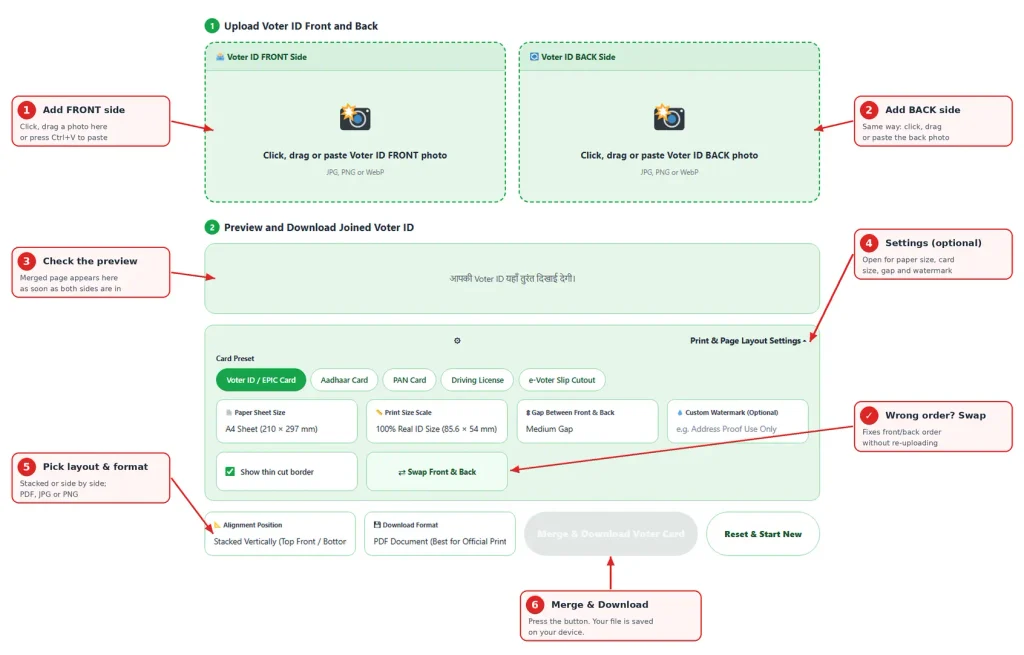
If the sides went into the wrong boxes, use Swap Front & Back.
Which settings suit which job
Offices differ, so treat this as a starting point.
| What you are doing | Format | Paper | Size | Also try |
|---|---|---|---|---|
| Printing a copy to hand over | A4 | 100% | Keep the cut border on | |
| Uploading to a portal with a size limit | JPG | Fit Card Dimensions | 100% | Turn the cut border off |
| Emailing to a bank or HR | A4 | 100% | Add a watermark with purpose and date | |
| Small text is hard to read | PDF or PNG | A4 | 125% | Keep the medium gap |
Real size matters when you print
Voter ID cards are credit-card sized, about 85.6 × 54 mm. The tool starts at exactly this size and saves at 300 DPI, so fine print stays sharp.
Stretching the card to fill an A4 sheet makes the text look swollen, and some offices send such copies back. When you print the PDF, choose Actual size or 100%. “Fit to page” changes the card size without telling you.
Old or faded card? Do this before merging
A worn voter card is the most common reason for a bad copy. A few things help:
- Shoot in daylight near a window, not under a yellow bulb.
- Put the card on a plain dark surface so the edges stand out.
- If the text is pale, raise the brightness and contrast a little in your phone editor. Do not go overboard.
- Skip the strong “black and white document” filter. It can wash out the photo and the small print.
- Lay the card flat and shoot from straight above. A tilted photo makes the card look like a trapezoid.
- Take the back as carefully as the front. The address is usually printed on the back, and that is often the reason the office asked for it.
Sharing your Voter ID without regrets
A Voter ID copy shows your photo, EPIC number, name, relative’s name and address. Handle it with care.
- Add a purpose and a date. Something like “For SIM verification only, 14-10-20xx”. Keep it short so it does not cover the number.
- Send it only to whoever asked. An official email or portal is better than a personal chat number.
- Keep the clean original to yourself. Share the watermarked copy.
- Clear shared devices. Delete the file from cyber cafe or office computers.
If the person asking does not need the whole card, ask what exactly they need. Fewer copies in circulation means less to worry about.
Is it safe to merge a Voter ID online?
Your images are merged inside your browser and are not sent to our server. You can test this. Open the page, switch off your internet and merge a JPG. The PDF option fetches a small helper file the first time you use it, so test with JPG or PNG.
PDF, JPG or PNG
PDF keeps the page size and prints at real card size, so it is the safest choice for offices. JPG gives a smaller file for portals with limits. PNG gives the cleanest text but may be too heavy for an upload form.
Quick fixes
- The merged page has a grey line around the cards. That is the cut border. Turn it off in the settings.
- The card looks small on A4. It is printed at real size. Choose 125% if you want it larger.
- The text looks blurry. The photo was taken too far away or in low light. Retake it closer.
- The preview shows the sides in the wrong order. Press Swap.
- The PDF did not download. The helper file may not have loaded. Check your connection or save a JPG instead.
Every office decides what it accepts, so follow the instruction on your form. For your voter details, to download an e-EPIC or to get help, use the official Election Commission portal at voters.eci.gov.in or call the 1950 helpline.
Frequently Asked Questions
Yes. The tool is free and needs no sign-up.
No. The merge happens in your browser. Only the PDF option fetches a small helper file from a public library the first time, and your images are not part of that request.
Not directly. Save the card portion as a JPG or PNG first, then add it to the front and back boxes.
The file is made at 300 DPI. PNG is lossless, and JPG and PDF use high quality compression. A blurry photo stays blurry, so retake it if needed.
Download the PDF and print at 100% or Actual size. Do not choose “Fit to page”.
The copy shows what is printed on the card. Whether an office accepts it as address proof is the office’s decision, so check their list of accepted documents.
Yes. Change the Alignment Position to Side-by-Side.
Save a JPG with the Fit Card Dimensions paper option, then reduce it with the image size reducer.
Yes. Tap a box and choose a photo from your gallery or take a new one.
The purpose and the date, for example “For address verification only, 14-10-2026”.