Merge CNIC Front and Back Online
Combine both sides of your Pakistani CNIC / Smart Card on one page and download a print-ready JPG, PNG or PDF.
More Free Pakistan Document & ID Tools
100% Client-Side Processing. No images uploaded to server.
CNIC & Card Processing
Optimization & Protection Tools
⭐ Free Online CNIC Joiner Tool · Fast, Safe & Mobile Friendly
Banks, universities, job portals and government forms in Pakistan usually ask for a CNIC copy with both sides visible. When you send two separate photos, one gets missed or the upload box accepts only one file. A single page fixes that.This free tool places the front and back of your CNIC on one page at its real size. You get a PDF, JPG or PNG that is ready to print or upload. Everything runs in your browser, so your card images stay on your phone or computer.
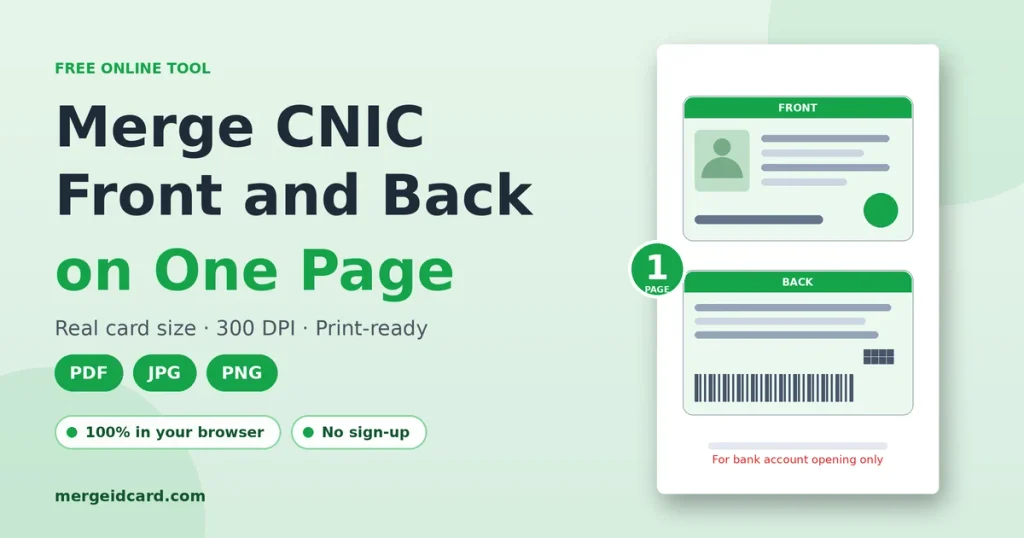
What does it mean to merge CNIC front and back?
It means putting both sides of your cnic card into one file. The front goes on top and the back below it, or you can place them side by side. The result looks like the photocopy you would get from a shop near the bank, except you make it yourself in a few seconds and choose the paper, size and format.
How to merge CNIC front and back
- Add the front. Tap or click the FRONT box, drag a photo into it, or paste an image with Ctrl+V.
- Add the back. Do the same in the BACK box. JPG, PNG and WebP all work.
- Check the preview. The merged page appears as soon as both sides are in.
- Change settings only if needed. The defaults give you an A4 page with a medium gap and thin cut lines.
- Pick a format and download. Choose PDF, JPG or PNG, then press Merge & Download CNIC.
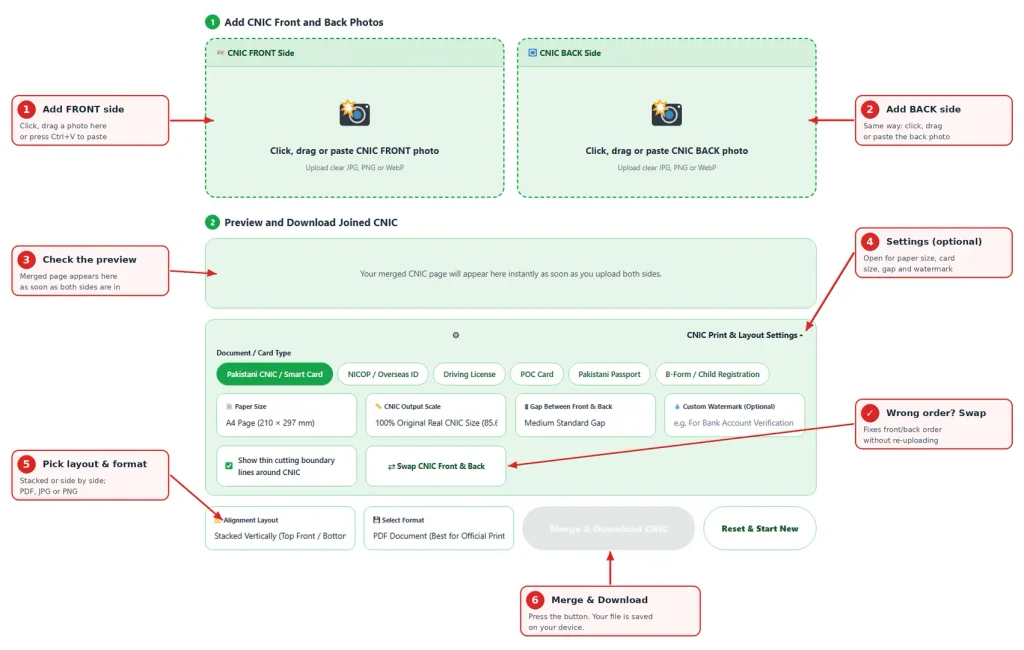
If you added the sides in the wrong order, press Swap CNIC Front & Back. You do not need to upload again.
Where a one-page CNIC copy is usually needed
Every office has its own rules, so always follow the instruction on the form or portal. These are the common situations and what tends to work.
| Situation | Format that usually works | Tip |
|---|---|---|
| Bank account opening or KYC | PDF for branch, JPG for app upload | Add a watermark with purpose and date |
| University or scholarship application | JPG or PDF | Check the file size limit on the portal first |
| Job application or HR file | Use the “Fit Card Dimensions” paper option for a tight page | |
| Utility, internet or SIM-related forms | JPG | Keep the number and photo readable |
| Courier, visa or travel forms | Print at 100% size and do not scale to fit |
Print at real CNIC size
The Pakistani smart card follows the standard ID-1 size, 85.6 × 54 mm, the same as a debit card. The tool starts with this size and saves at 300 DPI, so small digits in the CNIC number stay sharp.
Stretching a card to fill an A4 sheet makes the text look blown up, and some offices do not accept such copies. If you want a bigger copy for easier reading, choose the 125% or 150% option. If your choice does not fit the paper, for example two large cards side by side on A5, the tool shrinks them a little instead of cutting the edges.
When you print the PDF, set the scale to “Actual size” or 100%. “Fit to page” changes the card size.
What you can change in the settings
The settings stay closed until you open them, so quick jobs stay simple.
| Setting | Options | When to use it |
|---|---|---|
| Card type | CNIC, NICOP, Driving License, POC Card, Passport, B-Form | Changes the frame size to suit the document |
| Paper size | A4, Letter, A5, Fit Card Dimensions | Use “Fit Card Dimensions” for no empty page around the cards |
| Output scale | 100% real size, 125%, 150% | Go larger only if the text is hard to read |
| Gap | None, Small, Medium, Large | Medium is good for cutting and for clean scans |
| Watermark | Your own short text | Limits misuse of your copy |
| Cut border | On or off | Turn it off if the portal wants a clean image |
| Layout | Stacked or side by side | Stacked suits portrait pages, side by side suits landscape forms |
Your photos are fitted inside the card frame without stretching, so a slightly different aspect ratio will not distort the card.
PDF, JPG or PNG: which one should you pick?
| Format | Best for | Trade-off |
|---|---|---|
| Printing, emailing, bank branches | Some portals only accept images | |
| JPG | Upload forms with a size limit | Slightly lower quality than PNG |
| PNG | The sharpest text | Larger file, may exceed upload limits |
Which cards work with this tool?
It is built for the Pakistani smart CNIC, but any two-sided card works. The card type chips cover NICOP, driving licence, POC card, passport pages and B-Form frames. For a card that is not listed, keep the default type. The page will still be created correctly.
Is it safe to merge CNIC online?
A CNIC copy carries your name, 13-digit number, photo and family details, so it is right to ask where it goes.
The merge happens inside your browser and your card images are not sent to our server. You can test this yourself. Open the page, switch off your internet and merge a JPG. The PDF option downloads a small helper file the first time you use it, so test with JPG or PNG.Even with that, handle the finished file carefully. Delete it from shared computers and internet cafe machines, and avoid forwarding it in large WhatsApp groups.
Protect your CNIC copy before you share it
A plain CNIC copy can be reused by someone else for something you never agreed to. A few habits reduce that risk:
- Add a purpose and date. Example: “For ABC Bank account opening only, Day-Month-Year “. Keep it short so it does not cover the number or photo.
- Share only with the office that asked. Send it to an official email or portal, not a personal number.
- Keep the original file private. Send the watermarked copy, not the clean one.
- Do not over-mask. Banks and KYC checks usually need the number visible.
Tips for a clear photo or scan
A merged page is only as good as the images you give it.
- Place the card flat on a plain, dark or light background with no pattern.
- Hold your phone straight above it, not at an angle.
- Use light from one side so the hologram and photo do not reflect glare.
- Keep all four corners in the frame, then crop away the extra background.
- Use the same orientation for both sides.
- Zoom into the preview and confirm that the number and date are readable before downloading.
Common problems and quick fixes
| Problem | Likely cause | Fix |
|---|---|---|
| Card looks small on A4 | It is printing at real size, which is correct | Choose 125% or 150% if you need bigger |
| Thin grey line around cards | Cut border is on | Turn it off in settings |
| Portal says file too large | PNG or high-quality PDF | Use JPG and then compress |
| Text looks blurry | Low-resolution source photo | Retake it closer and with more light |
| Sides are in wrong order | Added in wrong box | Use the Swap button |
| PDF does not download | The helper file could not load | Check your connection and try again, or use JPG |
Official requirements for ID copies are set by each bank, institution and authority. Read their instructions before you submit. For rules about CNIC itself, refer to NADRA.
Frequently Asked Questions
Yes. The tool is free and does not ask you to sign up. Add both sides, check the preview and download.
No. The merging happens in your browser. Only the PDF option loads a small helper file from a public library the first time you use it. Your images are not part of that request.
The tool keeps your photo’s proportions and saves at 300 DPI. PNG is lossless. JPG and PDF use high quality compression, so the difference is very small. A blurry source photo will stay blurry.
Download the PDF and open the print dialog. Set the scale to “Actual size” or 100%. Do not select “Fit to page”.
JPG, PNG and WebP.
Yes. Change the Alignment Layout to Side-by-Side before downloading.
Yes. You can pick photos from your gallery, and the page adjusts to small screens. Paste with Ctrl+V works on desktop.
Most offices accept a single-page copy, but rules vary. If an institution asks for separate files or an attested copy, follow their instruction.
The purpose, the receiver and the date, for example “For HR verification only, Date (Day-Month-Year)”.