Merge Iqama Card Front and Back Online
Combine both sides of your Iqama / Muqeem Resident ID onto a single page for official printing and online verification.
More Gulf & International Document Tools
Browser-side processing. Privacy guaranteed.
GCC Resident Utilities
⭐ Free Online Iqama Card Joiner · Fast, Safe & Mobile Friendly
Your Iqama has two sides, and most offices want to see both. A bank officer, an HR team or an online form will rarely accept one photo that shows only the front. Sending two separate images is not much better. One gets missed, and the upload box often takes a single file.This page puts the front and back of your Iqama on one sheet at the size of the real card, ready to print or upload. It runs inside your browser, so your photos are not sent to any server.
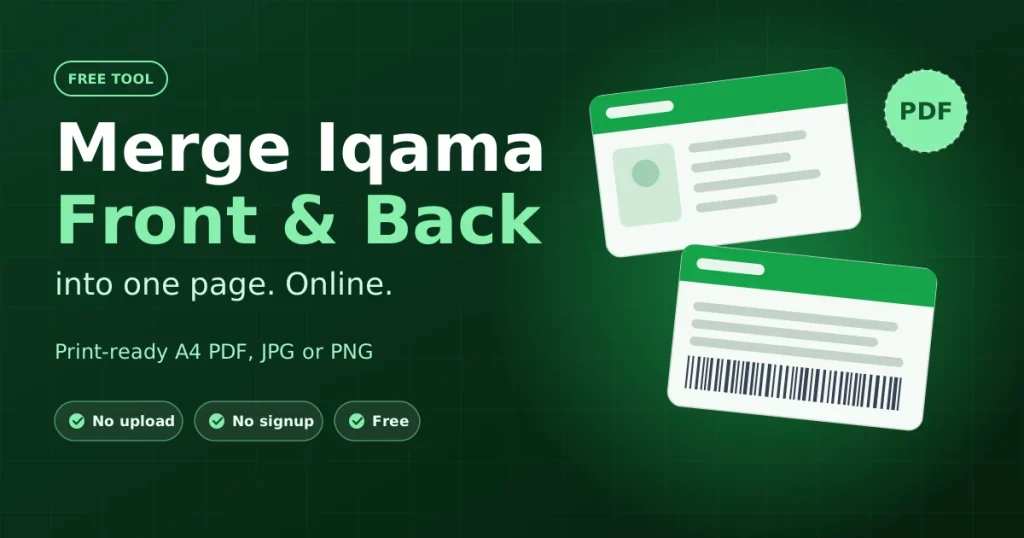
Quick steps: add the Iqama front, add the back, check the preview, then press Merge & Download. PDF is already selected, and it gives you an A4 page with both sides at 85.6 × 54 mm.
When someone asks for a copy of your Iqama
An Iqama copy is one of the most common document requests for residents in Saudi Arabia. The wording is usually “clear copy, both sides”. What each place does with it differs, so the file you send should differ too.
| Situation | What they usually need | Suggested file |
|---|---|---|
| Opening or updating a bank account | Printed or PDF copy, both sides, numbers easy to read | PDF, A4, real size |
| Joining a new employer | A copy for the personnel file, often sent by email | |
| Mobile line or app registration | A photo uploaded through a form | JPG |
| Visa, travel or insurance forms | One file, often with a size limit | JPG (smaller) or PDF |
| School or clinic registration | A printed copy for their records | PDF, printed at 100% |
Rules change from one office to another. If you are unsure, ask what format they accept before you send anything.
How to merge your Iqama front and back
- Add the front. Click the Iqama FRONT box, drag a photo into it, or paste one with Ctrl+V.
- Add the back. Do the same in the BACK box. JPG, PNG and WebP all work.
- Look at the preview. The merged page appears once both sides are in. Zoom in on the Iqama number and the expiry date and make sure you can read them.
- Change settings only if you need to. The Saudi Iqama / Muqeem preset is already chosen, and the page is set to A4 with the sides stacked.
- Download. Pick PDF, JPG or PNG, then press Merge & Download Iqama.
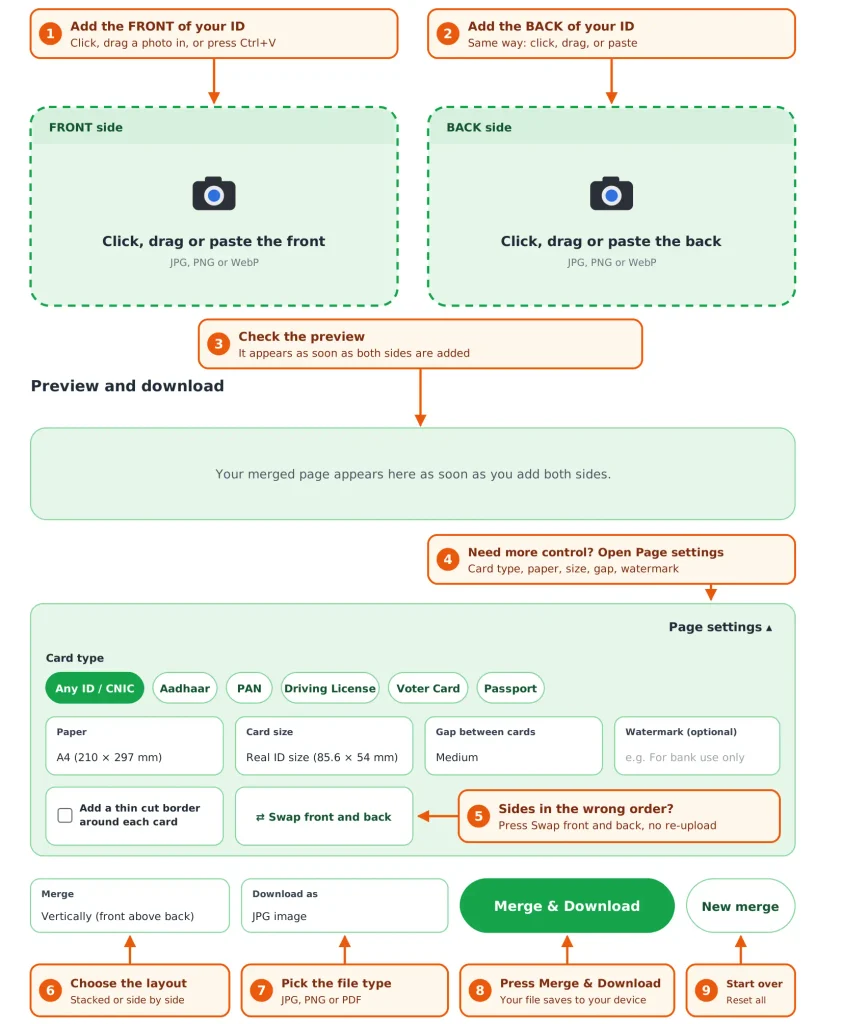
If the front and back landed in the wrong boxes, press Swap Front & Back. You do not need to upload them again. To do a second card, such as a family member’s, press Reset & Start New first.
Settings on this page and what to pick for an Iqama
Open Print & Page Layout Settings when you need more control. This table shows each option and a sensible choice for an Iqama.
| Setting | Options | Good choice for an Iqama |
|---|---|---|
| Paper Sheet Size | A4, Letter, A5, or fit to the cards only | A4 for printing. “Fit” gives a tight image for uploads. |
| Print Size Scale | 100% (85.6 × 54 mm), 125% (107 × 67.5 mm), 150% (128 × 81 mm) | 100% for a printed copy. 125% if the small text is hard to read. |
| Distance Between Front/Back | None, small (4 mm), medium (10 mm), wide (20 mm) | Medium. It leaves room to cut between the cards. |
| Alignment | Stacked, or side by side | Stacked fits a portrait A4 page and phone screens. Side by side suits landscape. |
| Cutting guidelines | On or off | On if you will trim the copy. Off for a clean upload. |
| Security watermark | Your own text | Purpose and date. See the section below. |
| Select Format | PDF, JPG, PNG | PDF for print and email. JPG when a portal limits file size. |
Printing your Iqama copy at real size
The Iqama is a plastic card about the size of a bank card, so the default 85.6 × 54 mm setting matches it. A copy at that size looks like the card itself, and it fits the space most forms leave for it.
- Keep Print Size Scale on 100%.
- Download the PDF.
- In the print window, choose Actual size or 100%. Do not choose “Fit to page”, because that resizes the cards.
- Hold your real Iqama on top of the printed copy. The edges should line up.
Two cards at real size leave a lot of white space on an A4 sheet. That is normal. If your card is a slightly different size, measure it and use a larger scale instead.
Photograph your Iqama so the copy is readable
The merged page can only be as sharp as your photos. Most blurry copies come from the same few mistakes.
- Put the card on a plain, matte surface in a colour that stands out from the card.
- Use light from a window or lamp at the side. Flash causes a white patch across the photo and the hologram.
- Hold the phone directly above the card, not at an angle.
- Keep all four corners in the picture, and crop away extra background.
- Take both sides in the same orientation.
Keep your Iqama copy from being misused
An Iqama copy carries your name, your Iqama number and your photo. Once it leaves your hands, you cannot control where it goes. A few habits reduce the risk.
- Add a watermark with the purpose and date. For example: For bank account opening only – 14 Oct 2026. It shows what you agreed to and makes the copy harder to reuse.
- Send it only to a contact you can verify. Use the official email or portal of the bank, employer or office.
- Do not post it in public groups or chats.
- Delete it from shared or public computers. Check the Downloads folder too.
On how this tool handles your files: the merge happens in your browser, and your images are not uploaded. The PDF option loads a small open-source helper (jsPDF) from a public CDN the first time you use it, so it needs an internet connection that moment. JPG and PNG do not need any extra file.
Common problems and quick fixes
| Problem | Likely reason | Fix |
|---|---|---|
| The copy looks small on A4 | It is printing at real card size, as intended | Choose 125% or 150% under Print Size Scale |
| Front and back are the wrong way round | Photos were added to the opposite boxes | Press Swap Front & Back |
| Text looks soft or blurry | The original photo is low quality | Retake the photo in good light. Merging cannot add detail. |
| A portal says the file is too large | PNG and large pages produce bigger files | Download as JPG, or use “Fit Iqama Dimensions Only” |
| The PDF does not download | The helper file could not load | Check your connection and try again, or download JPG instead |
| A grey line shows around each card | Cutting guidelines are switched on | Untick Show thin cutting guidelines |
About this tool and where to check official details
MergeIDCard is an independent tool for arranging copies of your own documents. It is not connected to the Saudi Ministry of Interior, Jawazat, Absher or Muqeem. For anything about your residence status, renewal or fees, use the official services: Absher (absher.sa) and Muqeem (muqeem.sa).
The settings and sizes on this page were written from how the tool actually works, so what you read here matches what you get when you download.
Frequently Asked Questions
Yes. The tool is free, and you do not need an account.
No. The merge runs in your browser, and the photos stay on your device. Only the PDF helper file is fetched from the internet, and your images are not part of that.
It depends on who is asking. Many places accept the digital version, but some still ask for a printed copy with both sides. Check with the office first.
By default it prints at 85.6 × 54 mm, about the size of a bank card. Use the 125% or 150% option if you want it larger.
Yes, one card at a time. Finish the first download, press Reset & Start New, and add the next person’s front and back.
Choose PDF for printing and email. Choose JPG when a website limits the file size. Choose PNG if you want the sharpest text and the size does not matter.
Yes. The preset list also includes Emirates ID, Qatar ID, driving licence and passport data page. Pick the one that matches your card.